What is a DLL file?
What is a DLL file in practical terms? DLL stands for dynamic-link library. It is a compiled Windows library containing functions, data, or resources that another program can load when it needs them. The program that starts the user experience is usually an EXE, while a DLL supplies part of the work behind that program. The library may be installed with Windows, a Visual C++ runtime, a game, a printer driver, or another application. Its file extension tells you the container type, not whether the file is safe, current, or compatible.
A DLL normally is not meant to be opened like a document. Double-clicking one may do nothing, show an Open with prompt, or ask Windows to load it through an association. None of those actions is a reliable way to learn what the library does. A safer first step is to inspect the path, version information, digital signature, and requesting program. If the file came from an installer, the installer remains the best source for a replacement because it knows which build and dependencies belong together.
Think of a DLL as a shared component with a contract. The application expects particular exported functions, data formats, processor architecture, and runtime dependencies. When those expectations match, the program can reuse the library. When they do not, Windows may report that a file is missing, the entry point is not found, or the image is invalid. The name alone cannot tell you which contract a particular file implements.
- A DLL can contain native machine code, managed .NET metadata, resources, or a combination of those elements.
- Several applications can use one library, so replacing it in a shared folder can affect more than the program showing the error.
- A valid digital signature identifies a signer and protects signed bytes from unnoticed changes; it is not a complete malware verdict.
- The correct repair is usually the package that owns the DLL, not a random same-named download.
Why Windows uses DLL files
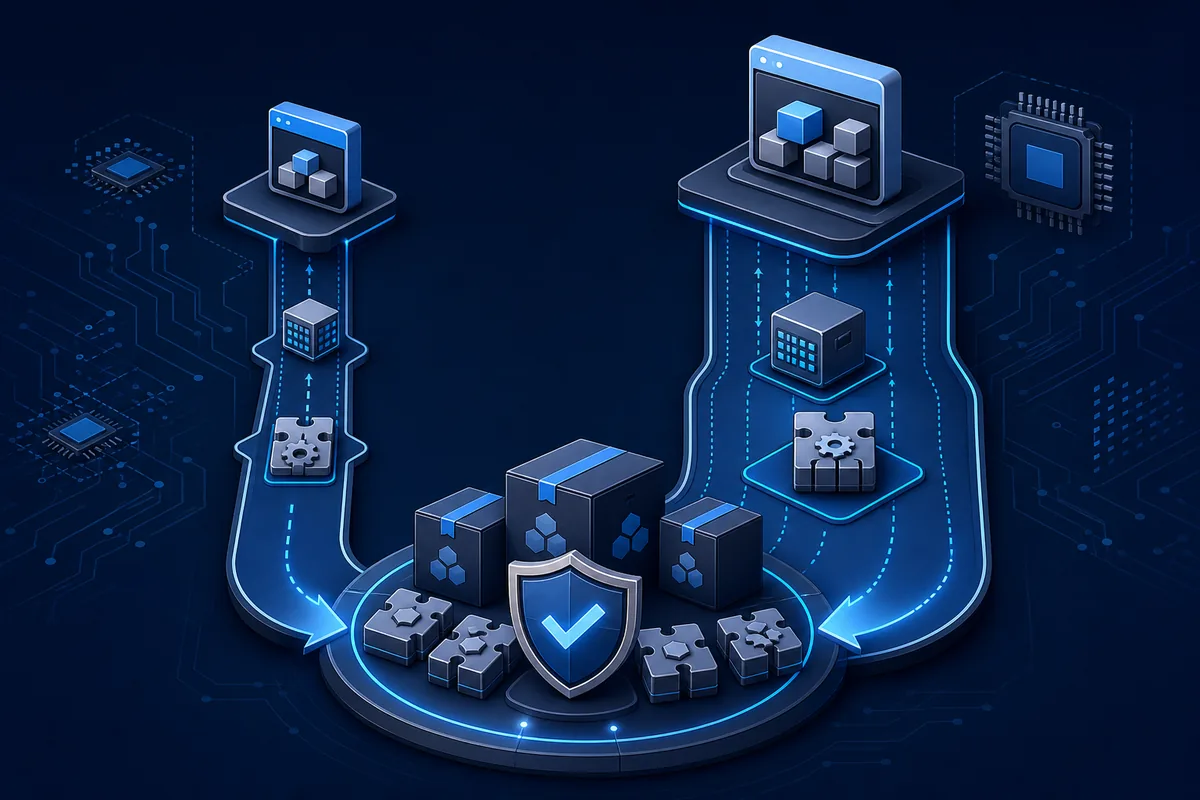
Shared libraries let software reuse code instead of placing a separate copy of every function in every executable. That can reduce duplicated disk storage and make updates more manageable. A vendor can update a component used by several programs, provided the new build preserves the interfaces those programs expect. Windows also uses DLLs to divide large subsystems into components that can be loaded only when needed.
The word shared describes reuse, not unlimited compatibility. A library is loaded into a process with a particular bitness, search path, security context, and set of dependencies. A 32-bit application normally needs 32-bit versions of its native dependencies, even when Windows itself is 64-bit. A 64-bit application cannot load a 32-bit native DLL into the same process. This is why installing an x64 package does not automatically solve every missing-DLL message on a 64-bit PC.
Updates can also expose a dependency that was previously supplied by another installer. Uninstalling a game, copying a program folder, or restoring a partial backup may remove a library while leaving the application behind. Antivirus quarantine, a failed update, and an incorrect architecture are other common causes. The useful question is not simply where to download a DLL, but which product installed it and which version that product expects.
| Role | Example | Why it matters |
|---|---|---|
| Reusable code | Rendering, audio, compression, or network functions | Multiple programs can call the same implementation. |
| Resources | Icons, strings, dialogs, or version metadata | The application can load assets without embedding every copy. |
| Compatibility boundary | x86/x64 and runtime expectations | The process must load a build that matches its architecture and interfaces. |
| Update unit | A Visual C++ or DirectX component | The owning package can service related files together. |
| Dependency | Another DLL required by the first library | A file can exist while a second required component is still missing. |
How a program loads a DLL
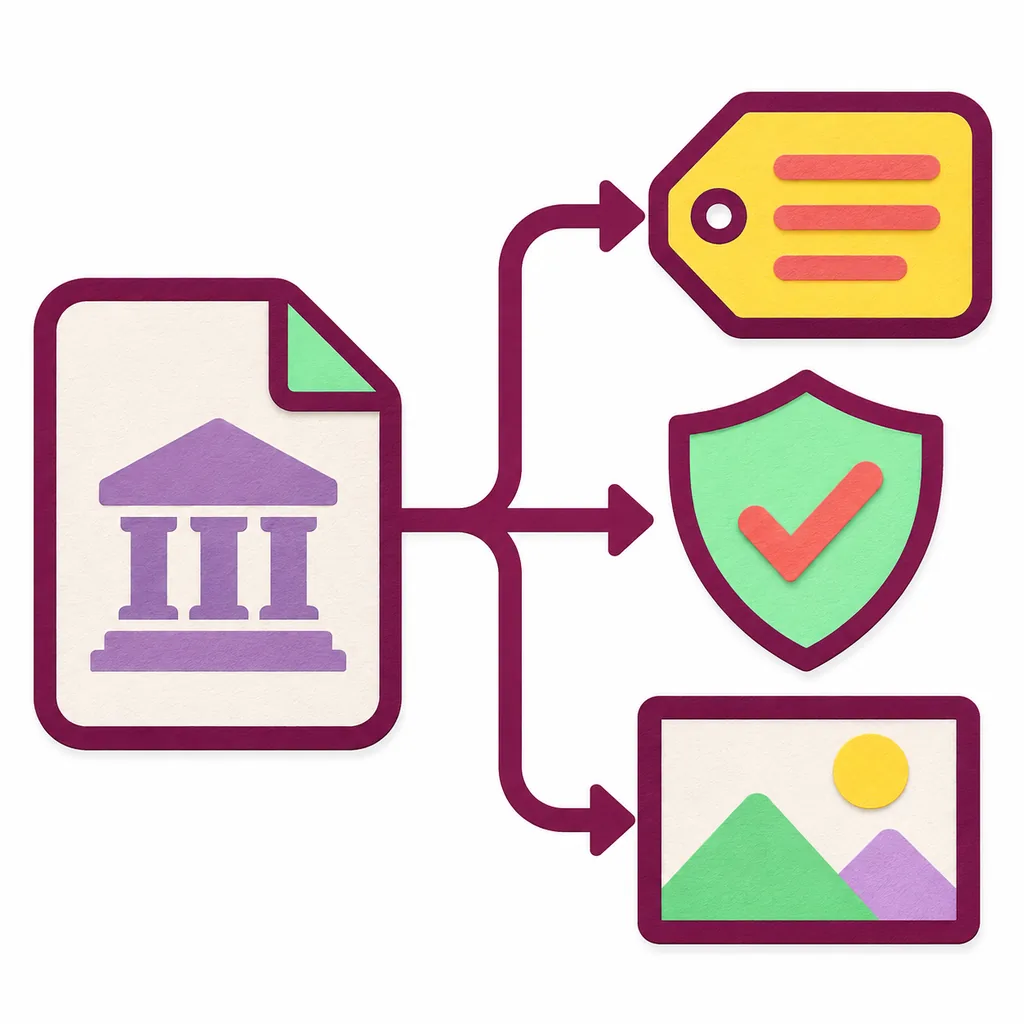
When an application starts or reaches a feature that needs a library, Windows resolves the DLL name and attempts to map the file into the process. The exact search behavior depends on the application, Windows settings, and whether the program uses an absolute path, a packaged dependency, or a standard loader call. Windows then checks the file format and architecture before resolving the functions the application requested.
A DLL exposes selected entry points rather than presenting a normal user interface. The application calls those exports with the arguments and data structures expected by that build. The library may in turn load other DLLs, read configuration, contact a device, or initialize a runtime. A failure in any part of that chain can look like a single missing-file problem even when the named file is present. That is why blindly copying a replacement into the application directory often moves the error instead of fixing it.
Developers may inspect PE headers, exports, import tables, or .NET metadata to understand this chain. Those views describe structure; they do not prove that loading the library is safe or that it will work with a particular application. For a normal Windows user, the requesting executable, its event log, and the publisher's repair instructions are usually more useful than a long list of exported names.
- Identify the requester. Record the application name, full error text, and the folder containing its executable.
- Confirm the owner. Use the installer, runtime package, game client, or Windows component that normally supplies the DLL.
- Check the architecture. Match the application and library as x86, x64, or another supported target; do not infer it from the Windows label alone.
- Resolve dependencies. Repair the owning package so related libraries and runtime files are installed as a set.
DLL, EXE, and .NET assembly differences
A DLL and an EXE can both use the Portable Executable format, but they serve different roles. An EXE normally has a process entry point that Windows can start directly. A DLL is designed to be loaded by another process and usually relies on that host to call its exported functions. Some DLLs can be launched through special tools, but that does not turn them into documents or make arbitrary execution a safe inspection method.
A .NET assembly may also use the .dll extension. It contains managed metadata and intermediate language that a compatible .NET runtime can load. Native DLLs contain machine code for a target architecture and follow a different loading model. A decompiler can reveal types or approximate logic in an assembly, but it cannot recreate the original source, comments, build settings, or license rights. Treat the extension as a starting clue and confirm the file type with a trusted read-only inspector.
| File type | Typical host | Safe first question |
|---|---|---|
| Native DLL | A Windows or application process | Which package owns this architecture-specific binary? |
| Managed .NET DLL | .NET runtime or application | Which target framework and assembly version does the app expect? |
| EXE | A new Windows process | Is this the trusted executable that requested the library? |
| System component | Windows services and protected processes | Should Windows servicing repair it instead of a manual file copy? |
Common DLL errors and what they mean
The message “the code execution cannot proceed because a DLL was not found” usually means the loader could not resolve a required file in the paths available to that process. The file may truly be absent, quarantined, installed in the wrong folder, or hidden behind a broken package update. “The procedure entry point could not be located” is different: a library was found, but it does not export the function the application expects. That often points to a mismatched version or architecture.
“The application was unable to start correctly” or “bad image” can indicate a damaged binary, an invalid format, or a dependency with the wrong bitness. “Side-by-side configuration is incorrect” commonly points to a runtime manifest or Visual C++ redistributable mismatch. These messages are clues, not permission to download the first file with the same name. Copying a DLL from another computer can introduce a different build and make diagnosis harder.
Start by preserving the exact wording and noting whether one application or many applications are affected. One game failing after an update suggests its installation or runtime; several unrelated programs failing suggests a shared Windows component, security change, or system issue. Use the owning product's repair or reinstall path, and escalate to Windows servicing tools only when the component is genuinely part of Windows.
- Missing file: the loader cannot find a required library in the allowed search path.
- Entry point missing: the file exists, but its exported interface does not match the application.
- Bad image: the binary may be damaged, the wrong architecture, or dependent on an invalid runtime.
- Side-by-side error: a manifest or Visual C++ runtime component is not resolved correctly.
- Access denied: permissions, security software, or a protected location blocks the load.

How to inspect a DLL safely
If you only need identity, stay read-only. In File Explorer, open Properties and review the path, size, version fields, and Digital Signatures tab when available. A missing signature is not automatically malicious, but an unexpected publisher or an unusual location deserves caution. Compare the path with the product that installed the file instead of judging the filename in isolation.
PowerShell can read Authenticode metadata without asking an application to use the DLL. A trusted PE inspection tool can show headers and exports, while a resource viewer can display icons or strings. Use tools from their original publisher, keep exported resources separate, and do not upload private binaries to an online scanner without permission. A viewer that loads a library or executes a helper changes the risk profile.
The goal of inspection is to answer a narrow question: who supplied this file, what architecture does it target, and what does the requesting application expect? If you cannot establish the source, stop at metadata and seek a legitimate installer or support path. Reading a binary in a text editor may show random characters and can corrupt the file if saved, so it is not a substitute for a purpose-built read-only tool.
PowerShell signature check
Replace the example path with the file you are inspecting. This reads signature metadata and does not register the DLL.
Get-AuthenticodeSignature -FilePath "C:\Path\example.dll" | Format-List Status,SignerCertificateVisual Studio header and export view
Run from a trusted Developer Command Prompt when the Visual Studio tools are already installed.
dumpbin /headers /exports "C:\Path\example.dll"Choosing the right DLL repair path
For a missing DLL error, repair the component that owns the file. Reinstall or repair the application, verify a game installation through its launcher, install the matching Microsoft redistributable, or use the official legacy DirectX package when that is the documented dependency. For protected Windows components, use Windows Update and supported system repair tools. These routes preserve manifests, related files, architecture, and future servicing.
Do not copy an unknown DLL into System32, SysWOW64, or a game folder just because the name matches. The folder names are counterintuitive on 64-bit Windows, and a manual copy can override a serviced version or leave a second dependency unresolved. A 64-bit Windows installation can run 32-bit applications, so the application architecture still determines whether an x86 runtime is required. Check the executable or publisher documentation before choosing x86 or x64.
If the error started after security software quarantined a file, review the exact detection and original source before restoring anything. Do not create a broad exclusion to make a program start. When a file has no verifiable owner, the safer outcome is to remove the untrusted software and reinstall a legitimate package. A DLL directory can help identify a likely component, but the owning installer is the final authority for a compatible replacement.
- Capture the error. Save the full message, application name, version, and path before changing files.
- Find the owner. Match the DLL to the application, runtime, game client, driver, or Windows component that supplied it.
- Repair the package. Use the publisher's repair, reinstall, verify, or redistributable installer rather than a standalone mirror.
- Match architecture. Confirm x86 versus x64 from the application and package documentation; Windows bitness alone is not enough.
- Retest and document. Restart the application, keep the installer source, and record any remaining dependency message for support.
Frequently asked questions
What is a DLL file used for?
A DLL file stores compiled functions, data, or resources that a Windows program can load and reuse. Shared libraries help applications avoid duplicating common code, but the program and DLL still need matching architecture, interfaces, and dependencies.
Is a DLL the same as an EXE?
No. An EXE normally starts a Windows process, while a DLL is designed to be loaded by another process and called through its exported functions. Both can use the Portable Executable format, but their roles and entry points differ.
Can I open a DLL in Notepad?
Notepad may display unreadable binary characters, and saving the file can corrupt it. Use Properties, signature metadata, a trusted resource viewer, or a PE inspection tool for a read-only check.
Why is a DLL missing when I have 64-bit Windows?
A 64-bit Windows installation can run 32-bit applications. If the application is x86, it may need an x86 runtime or DLL even though Windows is x64. Match the package to the requesting application, not only to Windows.
Should I download a DLL with the same filename?
Usually no. A filename does not confirm the publisher, version, architecture, or dependencies. Repair the application or runtime that owns the file, and use an official download or supported installer when one is documented.
Does a digital signature prove that a DLL is safe?
A valid signature helps identify the signer and confirms that signed bytes were not changed after signing. It does not prove that the file belongs in your application folder or that the signed software is appropriate for your task.
Official reference
- Microsoft: What is a DLL? Official explanation of DLL dependencies, entry points, troubleshooting tools, and development concepts.
- Microsoft Sysinternals Sigcheck Official documentation for version, timestamp, signature, and certificate-chain inspection.