
What a DLL file does
DLL means dynamic-link library. Windows programs can load a DLL when they need shared functions, data, or resources. A single library may be used by one app or by several related components, so Windows normally leaves it in the folder chosen by its installer or system package.
A DLL is compiled software. It is not a Word document, image, or ordinary text file, and double-clicking it usually does not display useful content. An Open with prompt does not mean the file is broken; Windows is asking which application, if any, should handle it as a file. Choosing a random program is not a reliable way to inspect its code.
How to open DLL files can mean checking identity, viewing an icon, listing exports, inspecting a .NET assembly, or making an app load the library. Choose a read-only tool for a first check.
- Inspecting metadata reads information recorded in the file without asking an application to use its functions.
- Viewing resources may show embedded icons, strings, or dialogs, but does not reveal the full source code.
- Loading a DLL into a process can execute code, so it is a different and riskier action than viewing file details.
How to open DLL files: choose a method
How to open DLL files depends on what you need to see, and it is not the same as loading one. If you want a file identity or icon, a read-only view is enough; a decompiler or registration command is unnecessary.
| What you need | Start with | What it can tell you |
|---|---|---|
| File name, location, size, or version | File Explorer Properties | Basic file details and any version information the publisher included. |
| Publisher or signature status | Windows signature details or Microsoft Sysinternals Sigcheck | Whether a signature is present and what signer information is recorded. |
| Icons or embedded resources | A trusted read-only resource viewer | Selected resources stored inside the library, not its complete program logic. |
| Headers or exported function names | A trusted PE inspection or development tool | Structural information and public exports, not original source code. |
| Managed .NET metadata | A reputable .NET inspection tool | Types and intermediate language for eligible managed assemblies. |
| Fix a program that reports a missing DLL | Repair or reinstall the requesting app or runtime | The supported files and registration steps supplied by that software vendor. |
Open DLL file properties in Windows
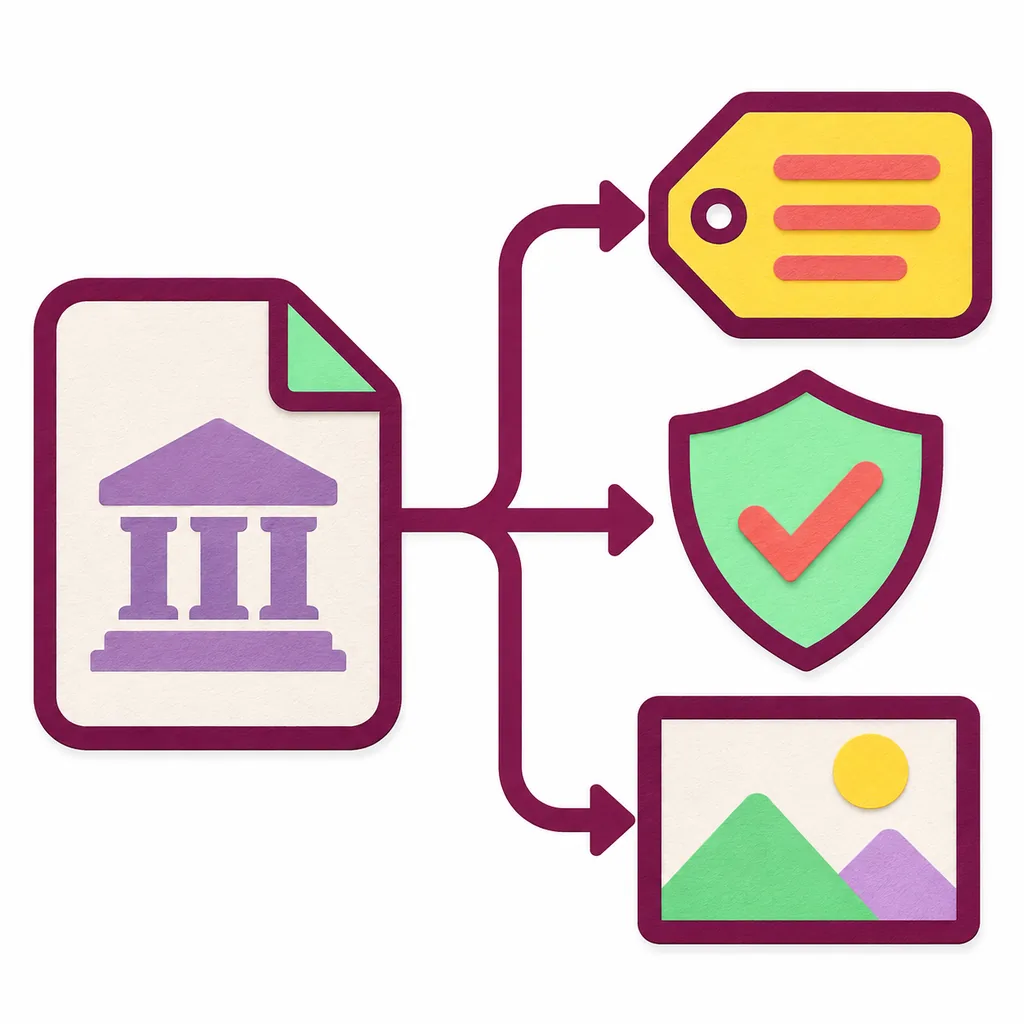
In File Explorer, browse to the DLL, right-click it, and choose Properties. General shows the path, type, size, and dates. Details may show version fields supplied by the publisher. Missing fields are normal and say nothing by themselves about safety.
Digital Signatures appears only when Windows recognizes a signature. Open its details to review the signer and status. A valid signature helps identify who signed the bytes and whether they changed; it is not a malware verdict.
- Locate the file. Note its path and the app folder it came from.
- Read Properties. Check type, size, Details, and any signature tab.
- Compare and close. Check for the expected publisher, then close without editing the DLL.
Check the DLL signature without loading it
If you are deciding how to open DLL files without loading code, PowerShell can query Authenticode metadata. Use the exact path from File Explorer. NotSigned means no recognized signature was found; it does not automatically mean the file is malicious.
Microsoft Sysinternals Sigcheck reports version, timestamp, signature, and certificate-chain details. Some options can check or upload to VirusTotal. Do not submit a private file without permission.
PowerShell signature check
Replace the example path with the DLL you are inspecting.
Get-AuthenticodeSignature -FilePath "C:\Path\example.dll" | Format-List Status,SignerCertificateSigcheck metadata view
Use this basic view from an existing Sysinternals installation; it does not request an upload.
sigcheck.exe -nobanner "C:\Path\example.dll"View icons or other embedded resources
Some DLLs contain icons, strings, version data, or dialogs. A resource viewer can display selected items. Get tools from their original publisher and choose view or export; do not execute, register, patch, or replace the file.
A resource view cannot show every instruction in a native DLL. No visible icons does not mean the library is empty. If you only need file identity, Properties or a signature check is simpler. Keep exports separate from the original.
Inspect headers or exported functions
For a developer asking how to open DLL files for structure details, a PE inspection tool can show headers and exports. Microsoft's Visual Studio tools include DUMPBIN in the Developer Command Prompt, so a known file can be inspected without launching it.
This metadata is not source code. Export names are only clues and do not prove compatibility. Check the file's origin and architecture; analyze unfamiliar files in a controlled environment.
Developer inspection example
Use only with installed Visual Studio tools and permission to inspect the file.
dumpbin /headers /exports "C:\Path\example.dll"When a DLL is a .NET assembly
Some DLLs are managed .NET assemblies. A compatible inspection tool can show metadata and an intermediate representation; native DLLs are different, and the extension alone does not identify the type.
A decompiler does not recreate the original project, comments, or build settings. Inspect only software you are allowed to examine; a readable preview is not a reason to execute an unknown file.
Do not use regsvr32 or rundll32 as a DLL viewer
regsvr32 and rundll32 are not DLL viewers. Registration is for particular self-registering COM components, while rundll32 calls only compatible entry points. On an arbitrary file, either command may load code or change system state.
Do not copy an unfamiliar DLL into a Windows or program folder, disable security software, or register it just to inspect it. If a trusted publisher requires registration, verify the exact file, architecture, and command first; otherwise stay read-only.

If you meant to fix a missing DLL error
A missing-DLL message is a repair problem, not a request to open a file. Record the full error and app name, then repair or reinstall the app and its runtime from the publisher. For Windows components, use supported repair and update tools.
The same filename can have the wrong architecture or version. Do not drop a replacement into System32 or a game folder. Use the site's <a href="/#safe-fixes">safe missing-DLL repair guidance</a> for that task.
Frequently asked questions
How can I find out how to open DLL files safely?
How to open DLL files safely depends on your goal. Use Properties for file details, a signature checker for signer information, a resource viewer for embedded items, or developer tools for headers and exports.
Is it safe to open a DLL in Notepad?
Viewing it may show unreadable binary characters, and saving it can corrupt the file. Notepad is not a DLL inspection tool. Check properties, signature details, resources, or structure with a suitable read-only utility.
Does a valid digital signature mean a DLL is safe?
No. A valid signature identifies a signer and helps confirm that signed bytes have not changed since signing. You still need to check whether that publisher and file location match the software you expected.
Should I use regsvr32 to open a DLL?
No. regsvr32 is for specific self-registering COM components, not for viewing arbitrary DLLs. Use it only when trusted publisher instructions identify the exact component and registration steps.
Can I restore a missing DLL by downloading one with the same name?
A matching filename does not establish the right version, architecture, publisher, or compatibility. Repair the requesting application or its supported runtime first, and use the software publisher's source for any required files.
Official reference
- Microsoft Sysinternals Sigcheck Official documentation for version, timestamp, digital-signature, and certificate-chain inspection.