What is steam_api.dll?
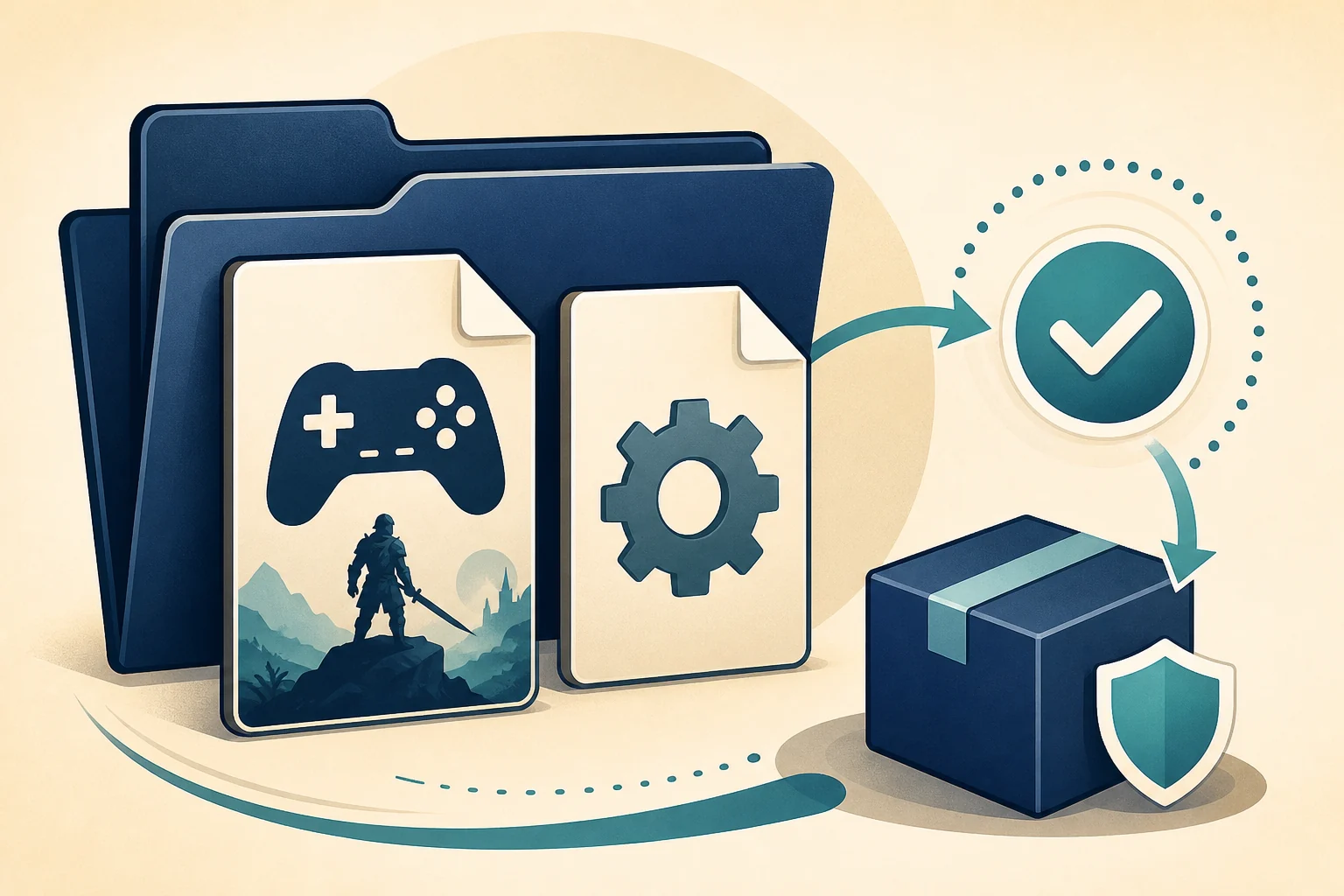
The library connects a 32-bit game build to Steamworks features such as authentication, achievements, matchmaking, cloud saves, and overlay integration. The game developer ships the matching redistributable files as part of its Steam depot.
A Steam_API.dll not found message usually means the game's local package is incomplete, quarantined, or mismatched. Files with this name are also frequently modified or redistributed with cracks, so a search result for a Steam API DLL download does not identify the correct build by itself.
Which source should provide a steam_api.dll download?
Use Steam's Verify integrity of game files workflow for the affected legitimate game. Steam compares the installed depot with the publisher's current manifest and restores the exact file expected by that title, which is safer than searching for where to find steam_api.dll on a mirror.
If the game came from another legitimate launcher, use that publisher's repair or reinstall workflow instead. If security software removed the file, review the detection and rescan the full installation; do not add broad antivirus exclusions just to make a modified game run.
Check the evidence before a steam_api.dll download
Start with the full download error and the path of the program that displayed it. A DLL error raised from a game folder usually points to that game's prerequisites or installation, while an error from an unrelated desktop program may point to a separate runtime. Search results for the filename cannot see that local context.
If a copy already exists, do not replace it with the first download listing you find. Open its file properties and review the location, digital-signature tab, product name, and modified date. Compare those details with the application installer or publisher documentation. A valid signature can support an origin check, but an unsigned file is not automatically malicious and a familiar filename is not automatically trustworthy.
Create a restore point or back up important application data before system-level repairs. Avoid registry cleaners and one-click download fixer programs that do not disclose exactly what they change. A controlled package repair is easier to reverse and easier to diagnose than several simultaneous replacements.
steam_api.dll download and safe repair checklist
Use this steam_api.dll download and safe repair checklist to choose a recovery method based on evidence, not urgency. The goal is to restore the component expected by the affected application while preserving its related files, update path, and architecture.
| Situation | Recommended decision |
|---|---|
| The error appeared on the first launch | Install or repair Steam game verification and then repair the application that displayed the message. |
| The error began after an update | Verify the affected product first because an interrupted update can leave a mixed set of executable and DLL versions. |
| The file exists but an entry point is missing | Remove manual replacement copies and restore the build selected by Valve / the game publisher or the original software package. |
| Security software quarantined the file | Review the detection, file path, signature, and original installer before deciding whether any restoration is appropriate. |
A responsible steam_api.dll download and safe repair process also records what changed. Keep the installer name, source domain, architecture, and time of repair. If the problem returns, those details help distinguish a damaged package from an application update, security action, or unsupported modification.
How to fix steam_api.dll download and missing-file errors
- 1
Open the affected game in Steam Library
Right-click the legitimate game that displayed the error and open its Properties page.
- 2
Verify the installed game files
Use Installed Files > Verify integrity of game files and let Steam complete the comparison and repair.
- 3
Review security detections
Check whether security software quarantined the original file or whether the game folder contains an unsupported replacement.
- 4
Remove copied cracks or emulators
Unsupported replacements can override or delete the publisher's Steamworks library. Restore the legitimate installation before testing again.
- 5
Reinstall the game if necessary
Back up saves when appropriate, then reinstall the affected title from Steam or its original publisher if verification cannot restore a consistent build.
Common steam_api.dll download and repair scenarios
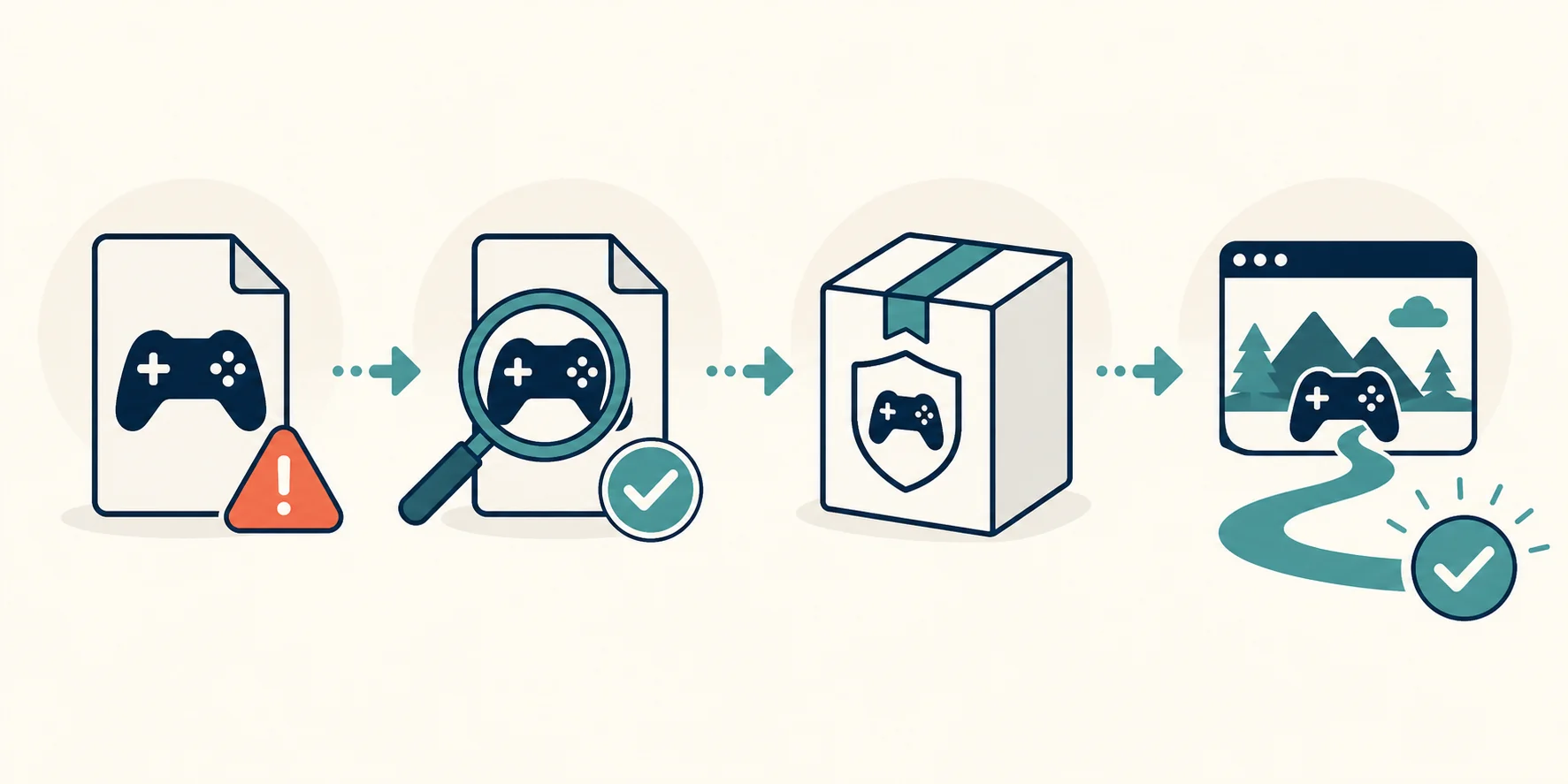
The safest steam_api.dll download and safe repair path depends on when the failure started. Work through the scenario that matches your system instead of applying every possible fix at once.
After installing or moving an application
Portable copies, restored backups, and manually moved game folders can omit prerequisites that a normal installer would add. Return to the original setup or launcher, install its dependencies, and keep the application in a supported location. Copying only the executable and a few DLL files rarely reproduces a complete installation.
After Windows or software maintenance
An update can expose an older local DLL that previously loaded by accident. Repair Steam game verification, then verify the affected application so its executable and supporting files come from the same release. Avoid rolling back unrelated Windows updates unless the publisher documents a confirmed compatibility issue.
After a security alert or modification
Do not treat an antivirus block as a routine missing-file problem. Record the detection, scan the system, and remove unofficial loaders, wrappers, or copied libraries. If the software is legitimate, recover it from its original publisher or store instead of searching for a replacement with the same filename.
This steam_api.dll download and safe repair guidance is intentionally source-first: the correct outcome is a working, maintainable application, not merely a folder that contains a file named steam_api.dll.
Common steam_api.dll download error messages
steam_api.dll was not found.Unable to load library steam_api.dll.The procedure entry point could not be located in steam_api.dll.
An entry-point error usually means the DLL exists but does not match that game's executable. Verification restores the depot version instead of guessing from another game or a generic mirror.
steam_api.dll download compatibility for 32-bit and 64-bit Windows
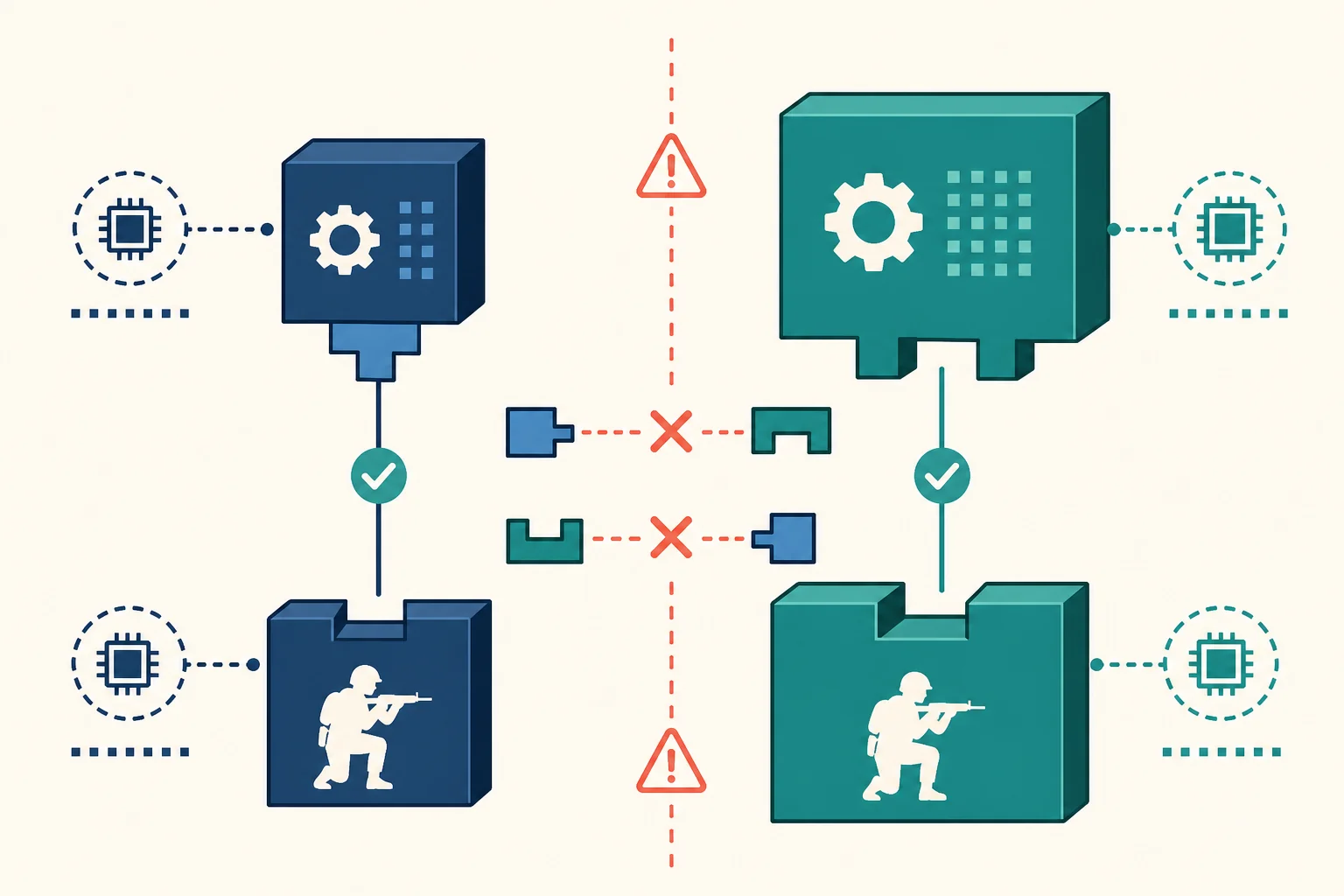
The filename normally identifies a 32-bit game integration library. It belongs in the location provided by the game publisher and should not be copied into Windows system folders.
steam_api.dll and steam_api64.dll are not interchangeable. Games can use different Steamworks SDK builds under either filename, so match the original title, architecture, and depot rather than the name alone.
How to confirm the steam_api.dll download repair worked
Restart the affected application from its normal launcher and repeat the action that previously produced the download error. A successful launch is stronger evidence than finding a file with the expected name. Check that the original missing-file or entry-point message is gone and that no new dependency error has replaced it.
If another DLL download is now requested, return to the owning package rather than downloading files one by one. A sequence of missing components usually means a redistributable, DirectX prerequisite, game depot, or application installation is incomplete. Record each installer used so you can undo changes or provide accurate details to the software publisher's support team.
Do not choose a steam_api.dll download by name alone
Do not download steam_api.dll from crack sites or file-sharing mirrors. This filename is commonly used in unauthorized packages and should be restored by the legitimate game client or publisher installer.
Reject any download that hides its publisher, package context, architecture, or update path.
steam_api.dll download FAQ
How do I fix steam_api.dll not found?
Open the affected legitimate game in Steam, choose Properties > Installed Files > Verify integrity of game files, and let Steam restore the matching library. If the game uses another launcher, use its official repair workflow.
Can I download steam_api.dll directly from Valve?
Valve's player-facing recovery method is to verify or reinstall the affected game through Steam, not choose a universal DLL file.
Is steam_api.dll the same as steam_api64.dll?
No. They represent different architecture and build paths. Use the file supplied by the affected game's legitimate installation rather than renaming one into the other.
Can I copy steam_api.dll from another Steam game?
No. Games can use different Steamworks SDK builds, exported functions, and packaging rules. Verify the specific title instead.
Why did antivirus remove steam_api.dll?
Review the detection, file path, signature, and original game source. Modified Steam API files are common in unauthorized packages, so do not create broad exclusions before investigating.
Where to find steam_api.dll?
Usually in the location provided by the game publisher, often inside that game's installation directory. Steam verification is safer than copying a file from another title.